Keep your groups
Restore group names, colors, collapsed state, tab order and pinned tabs. Your saved list stays available after you restore it.
Save a whole window in one click and restore it with groups intact. Turn on file backup to keep a copy on your own disk, ready to restore after a reinstall or on a new computer.
No account. No limit on saved tabs. Saving, restoring and the core backup features are free. Optional Pro is a one-time purchase.
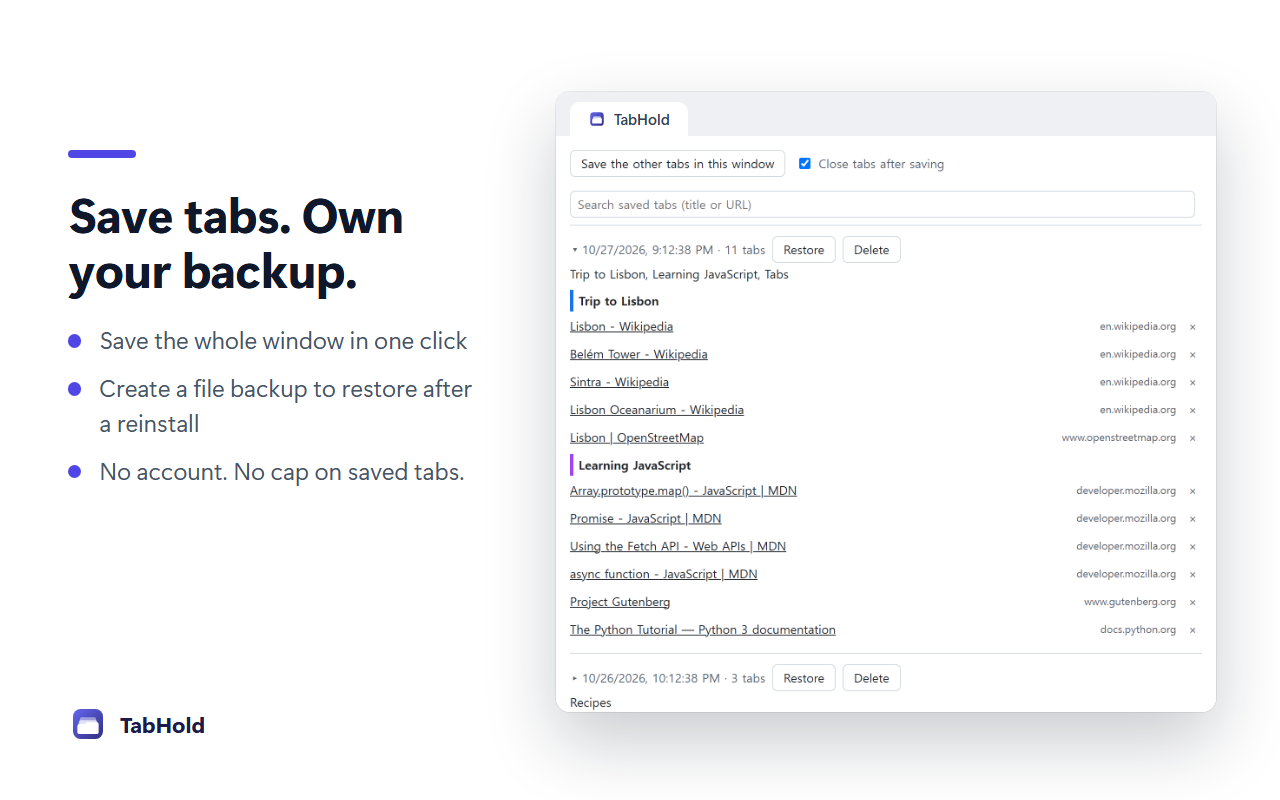
Restore group names, colors, collapsed state, tab order and pinned tabs. Your saved list stays available after you restore it.
Search saved tabs by title or address. Open one tab or restore a whole set when you return to a project.
With file backup enabled, your saved tabs also live in a file you can copy to another disk or computer.
Chrome removes an extension's own storage when you uninstall it. An existing TabHold backup file in your Downloads folder is separate from that storage.
File backup starts only after you enable it and make the first backup. Keep the file somewhere safe; deleting it also removes that copy. Automatic snapshots live inside the extension and do not survive uninstalling it.
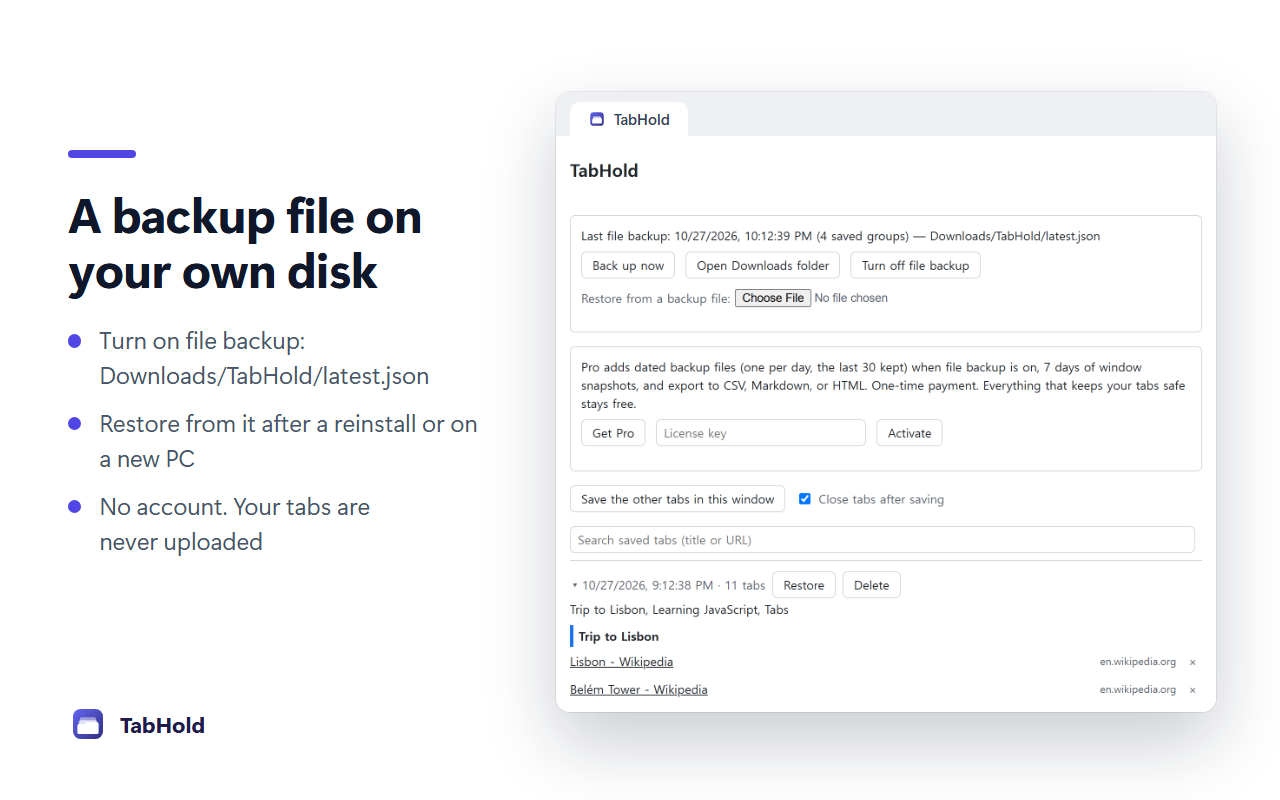
Click the toolbar icon to save your window. Saved tabs close by default; turn off Close tabs after saving if you want them to stay open.
Restore an entire save, or open a single tab. Chrome internal pages that cannot be reopened are skipped, with a count shown.
Import a OneTab export or a plain list of URLs. Check the preview and duplicate markers before adding anything.
Pro is optional and can be purchased from inside TabHold. License validation uses Polar; it does not include your tab titles or addresses.
No account is needed. The core saving and backup features are free. Pro adds extra backup history and export options through a one-time purchase.
Tab titles and addresses stay on your device. TabHold has no server of its own. Chrome sync holds only a small health record with a random install ID and saved-item counts, not your tab contents. Pro sends its license key to Polar for validation. Read the full privacy policy.
Yes. Enable file backup and make a backup first. Copy latest.json to the other computer, install TabHold there, and restore from that file. TabHold does not provide automatic cross-device tab sync.
Yes. TabHold preserves group titles, colors and collapsed state, plus tab order and pinned tabs. It requires Chrome 120 or later.
Saved tabs close by default after saving. Turn off Close tabs after saving to leave them open. Restoring a save does not remove it from your saved list.
Email [email protected] with your Chrome version and a description of what happened. You do not need to send your backup file or private tab addresses.
Save your tabs, and choose a backup file you control.